
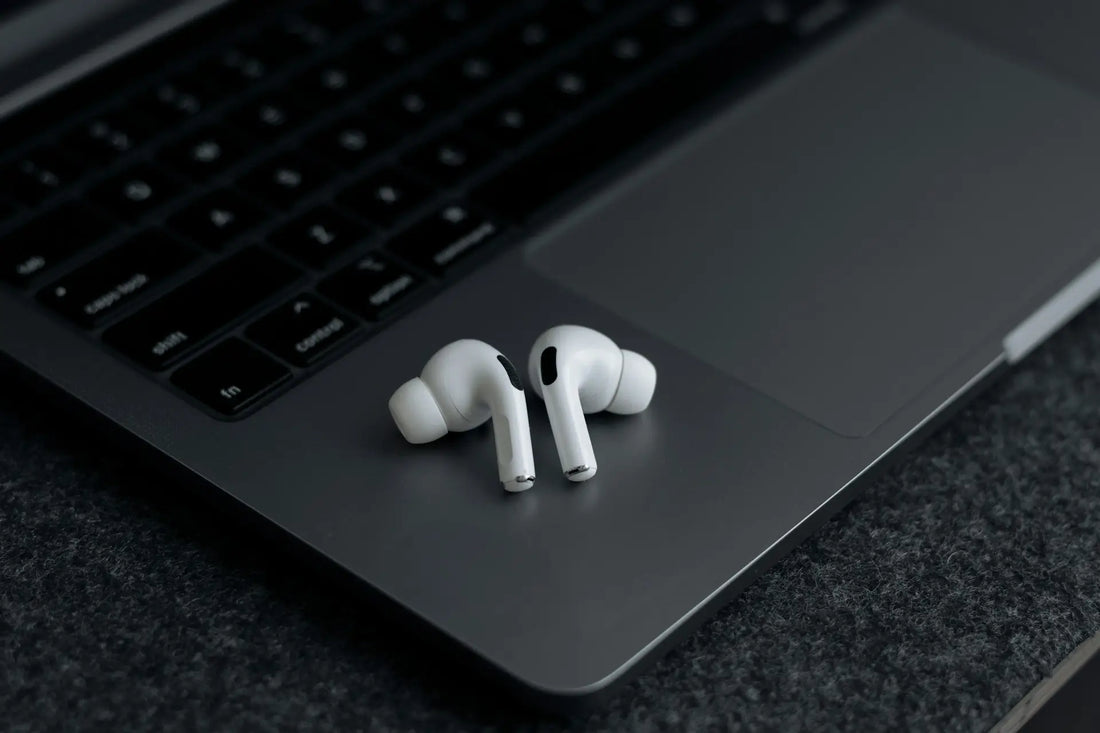
Your right or left AirPod no longer works? That’s frustrating, but the problem can often be solved quickly. Whether it’s a connection issue, dirt, or a software bug: here you’ll find the most common causes and simple tricks to get your AirPod working again.
Why is my right or left AirPod no longer working? 8 quick solutions
1. Check the battery level of the AirPods
Before you keep looking for a solution, make sure that your charging case and both AirPods are sufficiently charged.
-
Place both AirPods in the charging case and let them charge for at least 30 seconds.
-
Open the charging case near your iPhone or iPad.
-
Check on the screen whether both AirPods are charging correctly.
If one of the AirPods is not charging, there may be a problem with the contacts or the charging case.
Your charging case is not charging? This article will help you further.
2. Reset AirPods
If an individual right or left AirPod still does not work, a reset often helps:
-
Place both AirPods in the charging case and open the lid.
-
Press and hold the setup button on the back of the case for about 15 seconds, until the LED indicator flashes amber and then white.
-
Reconnect the AirPods to your device and test them.
3. Restart the iPhone or iPad
A simple restart of your iPhone or iPad can fix connection issues with the AirPods. Turn off the device, wait a few seconds, then restart it. After that, you can reconnect and test the AirPods.
4. Clean the AirPods thoroughly
Dirt and dust can clog the speaker grilles and affect the sound.
-
Check the speaker grilles for dirt.
-
Clean the AirPods carefully with a soft, dry cloth or a soft toothbrush.
-
If there is dirt in the openings, use a toothpick or a can of compressed air for a thorough cleaning.
You can find more detailed instructions for cleaning your AirPods here.
5. Check the balance settings
If one AirPod sounds quieter than the other, an incorrect balance setting could be the cause:
-
Go to Settings > Accessibility > Audio/Visual.
-
Check the balance slider and make sure it is centered.
If the slider is shifted, the sound may be louder on only one side.
6. Other possible causes & solutions
1. Bluetooth connection problems
-
Reset the Bluetooth connection: briefly turn Bluetooth off and then turn it back on.
-
Unpair the AirPods and reconnect them via Settings > Bluetooth.
2. Disable mono audio
-
Go to Settings > Accessibility > Audio/Visual and make sure Mono Audio is turned off.
-
If this option is enabled, the sound will only play through one AirPod.
How can I tell if an AirPod is defective?

A defective AirPod often shows the following signs:
-
No sound or extremely quiet sound, even after cleaning and restarting.
-
AirPod not detected or cannot be paired with the device.
-
Rapid battery drain, even after a full charge.
-
Does not charge, even though the charging case works.
If your AirPod consistently shows one or more of these problems, test it with another device. If the issue persists, there is likely a hardware defect. In that case, it is worth contacting Apple Support and checking the warranty. Alternatively, it may be cheaper to buy a single replacement AirPod than to have it repaired.
Can you also buy just one single AirPod?
Yes, and that’s exactly what OneEarPod is for. Instead of buying a complete set again, you can get individual, original AirPods from us — brand new, directly from the manufacturer, and with full warranty.
We buy complete AirPod sets from the manufacturer and sell the individual AirPods as well as charging cases separately. That way you save real money and don’t have to pay for something you don’t even need.
In our online shop you can find the individual AirPods.
Frequently asked questions

Why is only 1 AirPod working?
If only one AirPod is working, this is often due to a dead battery, connection issues, or dirt in the speaker grille. Charge the AirPods, clean them thoroughly, and test them with a reset.
What should I do if the right or left AirPod is not working?
You can do the following if the right or left AirPod is not working:
-
Charge both AirPods in the case for at least 30 seconds.
-
Check the charging status on your iPhone or iPad.
-
Reset the AirPods and reconnect them.
-
Clean the speaker grilles and check the balance settings.
How do I reset AirPods?
If your AirPods are not working properly, a reset can help:
-
Place both AirPods in the charging case and close the lid. Wait about 30 seconds.
-
Open the lid and go to the Bluetooth settings on your iPhone/iPad. Tap the “i” icon next to your AirPods and select “Forget This Device”.
-
Press and hold the setup button on the back of the charging case for about 15 seconds until the LED indicator flashes amber and then white.
-
Reconnect the AirPods to your device by holding them nearby and following the on-screen instructions.
After resetting, your AirPods should work normally again.
AirPod Pro right is not working, what can I do?
If your right AirPod Pro is no longer working, try these steps:
-
Charge the AirPod: Place it in the case and check the charging status.
-
Clean the speaker: Remove dust and dirt with a soft cloth or a brush.
-
Reset the AirPods: Press and hold the setup button on the charging case for 15 seconds.
-
Check noise cancellation: Switch between “Transparency” and “ANC” modes in the settings.
-
Test with another device: Pair the AirPods with another iPhone or iPad to rule out a software issue.
Still having issues? Then your right AirPod Pro may be defective. Get an original replacement AirPod Pro with warranty at OneEarPod.