
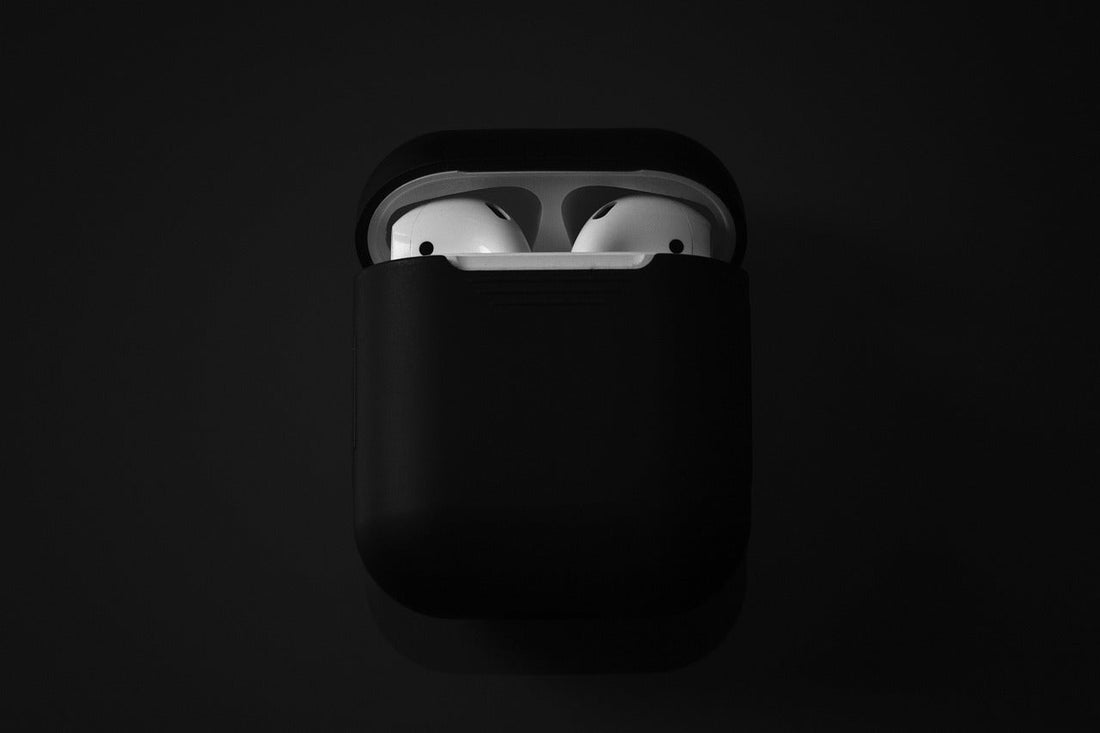
Are you having problems with your AirPods 2nd generation? Maybe a connection error, poor sound, or another issue? No stress: often a simple reset is enough to get everything working again. In this short guide, we show you how to quickly and easily reset your AirPods 2 — in less than a minute.
How to quickly reset AirPods 2
Here’s how you can easily reset your AirPods 2 again:
-
Place your AirPods in the charging case, close the lid, and wait about 30 seconds.
-
Open the Bluetooth settings on your iPhone or iPad that is paired with the AirPods:
-
-
If your AirPods are listed under “My Devices,” tap the info icon next to them, select “Forget This Device,” and confirm.
-
Not listed? Then skip straight to the next step.
-
-
Open the lid of the charging case.
-
Press and hold the setup button on the back of the charging case for about 15 seconds, until the status light first turns amber and then flashes white.
You can now reconnect your AirPods.
How to reconnect your AirPods 2

Reconnecting your AirPods 2 is the easiest step. Simply place them in their charging case with the lid left open, and then follow the steps on the display. Also make sure they are near the device you want to connect them to.
AirPods 2 still won’t reset?
If your AirPods 2 do not work as expected after the reset, there may be several causes. Here are possible solutions.
Some users report that, for example, when resetting, the status light does not flash white even though it should:
1. Status light not flashing white?
If the status light does not flash white during the reset, try the following:
-
Place your AirPods in the charging case and keep the lid closed for 20 seconds.
-
Open the lid.
With the AirPods 2, now press and hold the setup button on the charging case again for 15 seconds until the status light flashes amber and then white.
This may already have solved your problem, and you can now reset them
2. Battery problems as the reason why your AirPods 2 cannot be reset?
If your AirPods 2 cannot be reset, a drained battery could be the cause.
Make sure that:
-
The AirPods and the case are sufficiently charged.
-
The charging indicator lights up when a charging cable is connected.
Reading tip: AirPods batteries always drain quickly?
3. Hardware defect or software error?
If resetting still fails:
-
Restart your iPhone/iPad and try again.
-
Check whether an iOS update is available and install it. This usually happens automatically. More on this here.
-
If the problem persists, there may be a hardware defect – in that case, contact Apple Support.
H2 - What should you do if only a single AirPod 2 is not working or cannot be reset?

If only one AirPod is not responding or cannot be reset, there are several possible causes and solutions.
1. Reset AirPods individually
If only one AirPod is not resetting, try the following:
-
Remove the AirPods from the Bluetooth settings on your iPhone/iPad.
-
Place only the affected AirPod in the charging case and close the lid for 30 seconds.
-
Open the lid and press and hold the setup button for 15 seconds until the light flashes amber and then white.
-
Then place the second AirPod in the case and try connecting again.
2. Disable automatic ear detection
A sensor error can cause an AirPod not to be detected:
-
Go to Settings > Bluetooth > [Your AirPods].
-
Disable “Automatic Ear Detection” and test whether both AirPods are working again.
3. Cleaning the AirPods and the charging case
-
Dirt or debris can block the sensors or charging contacts.
-
Use a microfiber cloth or a cotton swab to clean the charging contacts in the case and the AirPods themselves.
You can find more details on this in our post “Cleaning AirPods”.
4. Check balance settings
If only one AirPod plays sound, but is detected:
-
Go to Settings > Accessibility > Audio/Visual.
-
Make sure the balance slider is exactly in the middle.
5. Replace a single AirPod
If an AirPod still does not work despite all measures, there may be a hardware defect:
-
Within the warranty: If you still have warranty coverage, you may be able to have the defective AirPod replaced by Apple free of charge.
-
Outside the warranty: No problem! At OneEarPod, you can reorder new original Apple AirPods individually — directly from the manufacturer and with full warranty.
Frequently asked questions
What happens when you reset 2nd-generation AirPods?
Resetting AirPods 2 deletes all saved connections, so they are no longer paired with previous devices. After the reset, the AirPods are back to factory settings, just like when they were first set up. If there were previously connection problems, sound dropouts, or charging errors, a reset can often help fix them.
How can you reconfigure 2nd-generation AirPods?
After the AirPods have been reset, you can simply set them up again. To do this, open the lid of the charging case near an iPhone or iPad and follow the on-screen instructions. Make sure Bluetooth is enabled so the device can detect the AirPods. After successful pairing, you can make individual adjustments in Settings under “Bluetooth,” such as the automatic ear detection feature or the double-tap function.