


Resetting AirPods, the key points at a glance:
- AirPods 1–3 & Pro 1–2: Close the case → wait 30 sec. → open the lid → press and hold the setup button for 15 sec. until the LED flashes white
- AirPods 4 & Pro 3: Double-tap the front of the case three times until the LED flashes white (there is no setup button anymore)
- AirPods Max: Press the Digital Crown and the noise control button simultaneously for 15 sec.
- Before selling: Be sure to remove the AirPods from the Apple ID – otherwise the new owner won’t be able to use them
- Reset not working? There may be a hardware defect – individual AirPods can be replaced more cheaply than the complete set
Resetting AirPods: Quick fixes in 30 seconds
Need a quick fix? Here is the quick guide for standard AirPods (1st, 2nd, 3rd generation, Pro 1 and Pro 2).
- Close the charging case with both AirPods inside
- Wait 30 seconds
- Open the lid and leave it open
- Press and hold the setup button on the back for about 15 seconds
The status light first flashes amber, then white. White means: Your AirPods have been reset and are ready for a new Bluetooth connection.
Important: AirPods 4 and AirPods Pro 3 work differently – they no longer have a setup button. You can find the details further down in the respective section.
When should you reset your AirPods?
A factory reset is often the quickest solution to technical problems – before you contact Apple Support or spend money on repairs. The good news: Most AirPods problems disappear after a simple reset.
Expert tip
The difference between a restart and a factory reset is important: A restart (briefly placing the AirPods in the case) fixes minor glitches. A full reset deletes all saved connections and settings – and gives your AirPods a true fresh start. This is helpful when a normal restart is not enough to resolve the issues.
Connection issues and Bluetooth interference
Connection dropouts are among the most common AirPods problems. In many cases, Bluetooth interference or a corrupted Bluetooth cache may be the cause.
Typical symptoms are varied and affect different aspects of the connection. The AirPods sometimes do not connect automatically to iPhone, iPad, or Mac, even though this should work by default. Frequent interruptions during playback of music, podcasts, or videos can significantly impair the listening experience. In some cases, only one AirPod works while the other stays silent, indicating a synchronization problem. It is particularly annoying when the AirPods constantly switch between different connected devices without the user wanting this.
Audio and sound quality issues
Poor audio quality can have various causes — from software bugs to clogged speaker grilles.
Distorted or muffled sound can indicate that either the software is not working correctly or the speakers are dirty. Crackling or static occurs particularly with AirPods Pro and can be caused by both hardware and software issues. Noise cancellation sometimes does not work properly and lets ambient noise through even though it is enabled. In some cases, audio no longer responds to commands or playback at all, which makes a reset necessary. Transparency mode can also cause problems and either not work at all or unnaturally amplify ambient sounds.
Battery and charging issues
Battery problems are the most frustrating. Sometimes a reset helps — but not always. This is because lithium-ion batteries naturally age. Dendrite growth in batteries can over time lead to reduced battery performance — this process cannot be completely stopped.
When a reset can help:
- Sudden rapid battery drain (after a software update)
- Charging case shows the wrong battery level
- Different battery levels on the left and right AirPod
When a reset will probably not help:
- AirPods are older than 2 years and the battery has been weak for a while
- Visible corrosion on the charging contacts
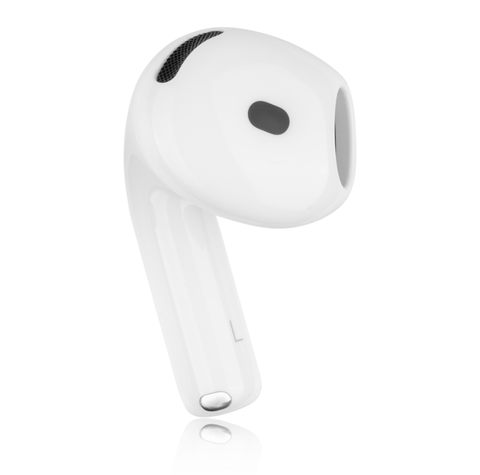
Reset AirPods: step-by-step instructions for all models
Depending on the AirPods model, the reset process differs. Here you will find the right instructions for your generation. Before resetting, you need to prepare your AirPods.
Checklist before resetting
- AirPods and charging case charged to at least 50%
- Both AirPods in the case
- Charging contacts in the case clean
- If passing them on: remove AirPods from Apple ID/"Find My" app
Expert tip
Reset AirPods 1, 2, and 3
These classic models all use the same reset method with the physical setup button.
Here’s how to reset AirPods 1, 2, or 3:
- Place both AirPods in the charging case
- Close the lid and wait 30 seconds
- Open the lid and leave it open
- Find the setup button on the back of the charging case
- Press and hold the setup button for about 15 seconds
- Watch the LED status light: it flashes amber first, then white
- As soon as the status light flashes white, your AirPods have been reset to factory settings
The AirPods will now appear in pairing mode again. Keep the open case next to your iPhone — the setup screen should appear automatically.
Reset AirPods 4 (with and without ANC)
AirPods 4 introduced an important change: the charging case no longer has a physical setup button. Instead, you use the new double-tap method.
- Place both AirPods in the charging case
- Close the lid and wait 30 seconds
- Open the lid
- Double-tap three times on the front of the charging case (6 taps total)
- The LED status light starts flashing faster
- Wait until the status light flashes amber and then white
This works for both the standard AirPods 4 and the version with active noise cancellation (ANC).
Reset AirPods Pro 2
AirPods Pro 2 still use the classic setup button — like the older models. Here’s how you can reset your AirPods:
- Place both AirPods Pro in the charging case (USB-C or Lightning)
- Close the lid for 30 seconds
- Open the lid and keep it open
- Press the setup button on the back of the case
- Hold the button down for about 15 seconds
- The status light flashes amber first (reset in progress), then white (ready to pair)
After the reset, you’ll need to set up features like Adaptive Transparency mode, personalized Spatial Audio, and stem volume control again.
Reset AirPods Pro 3
AirPods Pro 3 use — like AirPods 4 — the new double-tap method.
- Place both AirPods Pro in the charging case
- Close the lid, wait 30 seconds
- Open the lid
- Double-tap the front of the case three times
- Watch the LED sequence: amber → flashing white
- Done — AirPods Pro 3 are ready to pair again
Resetting AirPods Max: Instructions for the over-ear model
The AirPods Max work completely differently from the in-ear models. There is no charging case with a setup button here—instead, you use two buttons directly on the headphones.
- Make sure the AirPods Max are charged (charge for at least 5 minutes if the battery is empty)
- Find the Digital Crown and the noise control button on the right ear cup
- Press both buttons at the same time and hold them for about 15 seconds
- Watch the LED status light: it will flash amber first, then white
- Release the buttons as soon as the LED flashes white
AirPods reset not working, what should you do?
Sometimes the reset does not work on the first try. Don’t panic—most of the time it is due to easily fixable causes. The most common reason for failed resets: too little battery.
First, you should fully charge the AirPods and the case for at least 30 minutes, as a battery level that is too low can prevent the reset process. If charging does not work or you are unsure, use a different charging cable—depending on the model, either Lightning or USB-C—to rule out a defective cable. One often overlooked point is cleaning the charging contacts in the case with a dry, lint-free cloth, because dirt and dust can interfere with charging. Finally, you should check whether the AirPods are seated correctly in the case and are actually charging—the LED should light up and indicate the charging status.
Sometimes it helps to update the software and firmware—outdated software can cause bugs that affect the reset process.
Check these updates:
- Update iOS/iPadOS: Settings → General → Software Update
- Check AirPods firmware: Settings → Bluetooth → AirPods (i) → Version
- Reset network settings: Settings → General → Transfer or Reset iPhone → Reset → Network Settings
Important: After resetting the network settings, you will need to re-enter all Wi‑Fi passwords.
If all software solutions fail, there may be a hardware problem.Bluish or greenish discoloration on the AirPods stems is a clear sign of corrosion caused by water or sweat, and indicates irreparable damage that cannot be fixed by a reset. Visible cracks or damage to the case can not only impair its protective function, but may also indicate a drop or other mechanical impact that could have damaged internal components.
If the AirPods no longer charge, even though the case itself still works and charges other devices, the problem is likely a defect in the AirPods themselves or in the charging contacts. If one AirPod no longer works at all — with no sound and no connection possible — and even a reset does not help, the cause is most likely a hardware defect that requires professional repair or replacement.
