
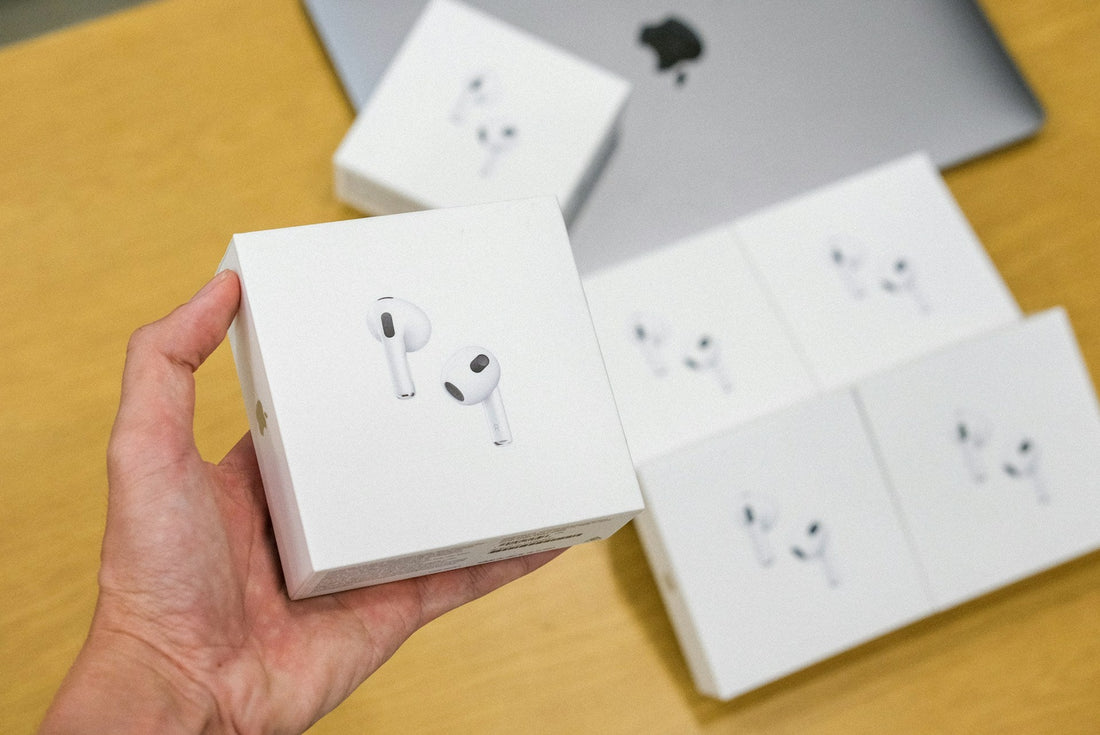
Your AirPods 3 won’t connect? That’s frustrating. But don’t worry. In this article, you’ll learn step by step how to get them connected without any trouble. We’ll also show you what to do if only a single AirPod won’t connect and how you can reset your AirPods 3 if in doubt.
Common reasons why the AirPods 3 won’t connect
Here you’ll find the most common reasons why your AirPods 3 won’t connect — and of course the right solutions right away. Simply try the following steps one after the other: often, even small measures are enough to fix the problem.
1. Low battery level
Both the AirPods and the charging case need enough battery. So first fully charge the charging case and both AirPods 3.
Reading tip: AirPods battery draining quickly?
2. Bluetooth error
A simple restart of Bluetooth on your smartphone or tablet can already make a big difference. Try it right away. Just turn Bluetooth off and on again.
3. Restart the device
A simple restart of the iPhone or iPad sometimes fixes connection errors.
4. Outdated firmware or iOS version
Make sure the latest software version is installed on your iPhone, iPad, or other devices. As soon as the AirPods are properly connected to the iPhone, they will automatically receive updates, provided the iPhone is connected to the internet. If an update is running, let it finish and then test the connection again
5. Multiple pairing
If you have already paired the AirPods with another device, conflicts can occur. This is how you fix the problem:
-
Disable Bluetooth on other devices — so the AirPods don’t connect elsewhere at the same time.
-
“Forget” the AirPods — delete the entry in the Bluetooth settings on your main device (Settings → Bluetooth → “i” icon → “Ignore Device”).
-
Pair again — place the AirPods in the charging case, open the lid, press and hold the setup button until the LED flashes white, then select them again in the Bluetooth settings.
5. Forgotten pairing
Sometimes your iPhone or another device can mix up the existing pairing information. Even if the device still shows the AirPods in the Bluetooth list, the connection is faulty. In this case, go to Settings → Bluetooth , tap the “i” icon next to your AirPods and select “Forget This Device.” Then pair the AirPods again to establish a fresh, working connection.
6. A defect is present
In some cases, hardware damage (e.g. to the charging case or the AirPods themselves) can prevent the connection. In this case, you should contact Apple Support or an authorized service provider to have the issue checked. If you still have warranty left and a bit of luck, you won’t have to pay much for the repair of the AirPods.
If your warranty has expired, we’ll talk about alternative options you have in a moment.
How do I connect AirPods 3rd generation? Step-by-step instructions

To make your AirPods connect directly to your iPhone or iPad, proceed as follows:
-
Open the charging case: Place the AirPods in the charging case and open the lid. Make sure your iPhone is unlocked and Bluetooth is enabled.
-
Watch for the popup window: As a rule, a window should automatically appear on the iPhone prompting you to connect the AirPods.
-
Tap Connect: Follow the on-screen instructions and tap “Connect.”
After a few seconds, you’ll have paired the AirPods and can get started right away. If the popup window does not appear, go to Settings → Bluetooth and select your AirPods 3 there.
Still not working? Continue with this alternative method
If automatic pairing doesn’t work, try this alternative method:
-
Open Bluetooth settings: Open the menu on your iPhone or iPad under Settings → Bluetooth.
-
Open the AirPods charging case: Hold the case with the lid open near the iPhone.
-
Press the setup button: Press the small button on the back of the charging case for a few seconds until the LED flashes white.
-
Select AirPods: If “AirPods 3” appears in the Bluetooth settings, tap it to connect.
If nothing works: how to reset your AirPods 3
If your AirPods 3 still won’t connect or other problems occur, a reset is now recommended. Here’s how it works:
-
Place them in the charging case: Put both AirPods 3 in the case and close the lid.
-
Wait 30 seconds: After 30 seconds, open the lid again.
-
Press and hold the setup button: Press and hold the button on the back of the case for about 15 seconds until the LED first lights up amber and then white.
-
Pair again: After the reset, you can reconnect the AirPods to your device (see previous instructions).
For more details: Feel free to read our article Reset AirPods.
What if only one AirPod 3 won’t connect?

If only one AirPod 3 is having trouble connecting, try the following:
1. Check the contacts
Carefully clean the contacts of the affected AirPod and the charging case (e.g. with a clean, dry cotton swab). Dirty contacts can affect charging and pairing.
Reading tip: Clean AirPods
2. Check both batteries
Sometimes one AirPod is charged and the other is not. Make sure both AirPods and the charging case are sufficiently charged. Place the AirPods in the case and charge them for at least 15 minutes.
3. Put it back in the case
First remove only the working AirPod from the charging case while leaving the problematic AirPod in the case. Close the lid and wait a few seconds so the case can fully reset. Then open the case again and put the working AirPod back in. Wait a moment again so both AirPods are properly recognized before testing whether both are now connected.
And if the AirPods 3 still won’t connect?
If your AirPods still won’t connect, a hardware defect is likely the cause. In that case, you can of course order new AirPods.
If, however, only a single AirPod is defective, you don’t have to buy a whole set right away: We also offer individual left or right AirPods.
The manufacturer itself does not offer individual AirPods, but we take complete bundles apart, thoroughly test each component, and then sell them separately.
This way you not only save money, but also act more sustainably. Of course, you receive the usual manufacturer’s warranty with our original parts.
Frequently asked questions
Can AirPods 3rd generation be connected to Samsung?
Yes, you can easily connect AirPods 3 to Samsung and other Android devices:
-
Enable Bluetooth on the Samsung device: Open Settings → Connections → Bluetooth.
-
Put AirPods into pairing mode: Open the charging case and hold down the setup button until the LED flashes white.
-
Select from the list: The AirPods 3 will now appear on the Samsung smartphone under available devices. Select them to establish the connection.
However, note that some special Apple features (e.g. automatic ear detection or Siri integration) are limited or do not work at all on Android devices.
AirPods 3 won’t connect? Here’s why
If your AirPods 3 won’t connect, these could be the reasons:
-
Low battery
-
Bluetooth error
-
Outdated firmware/iOS version
-
Faulty pairing
-
Hardware defect
AirPods 3rd generation won’t connect: what should you do?
Make sure both AirPods and the charging case are sufficiently charged and that Bluetooth is enabled on the iPhone. If pairing still doesn’t work, reset the AirPods 3: put them in the case, wait 30 seconds, hold the setup button for 15 seconds until the LED first lights up yellow and then white. You can then pair them again. If that still doesn’t help, there may be a defect — in this case, a replacement is recommended.