
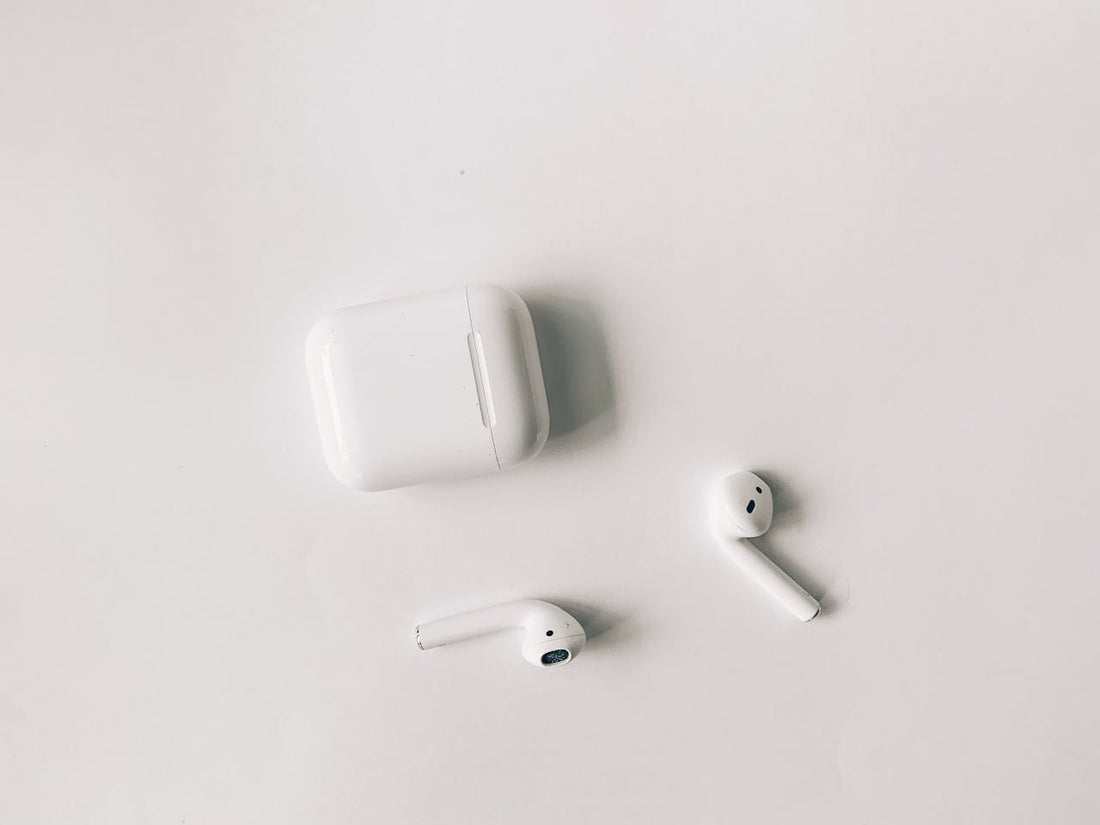
No sound is coming from your AirPods even though they're connected to your phone or computer? That's annoying. But don't worry, there are simple solutions to fix this problem. In this post, we'll go through various steps that can help you restore the sound on your AirPods and ensure an optimal listening experience.
Why don't I have sound anymore? 5 common causes and how to fix them
There are several possible reasons why you suddenly can no longer hear any sound through your AirPods, even though they're connected via Bluetooth. Here are the most common causes with possible solutions:
1. Bluetooth connection and icon issues
Cause: The normal speaker icon is shown instead of the AirPods Pro icon, and the sound keeps coming from the speaker.
Solution: Check whether you've switched the playback device to "AirPods" in the Bluetooth settings. To do this, go to the Bluetooth settings on your device. Look for the list of connected devices. Make sure the AirPods are selected and set as the active playback device. If the normal speaker icon is shown instead of the AirPods
icon, the sound may still be coming from the internal speaker.
Selecting the AirPods as the active playback device in the Bluetooth settings should fix the problem. If you like, I can clarify this passage further.
Additional tip: Try pressing the stem of one AirPod once to turn the sound on or off. This has solved the problem for some users.
2. Reset the Bluetooth settings:
Cause: There may be problems with the Bluetooth settings, even though the device is shown as connected.
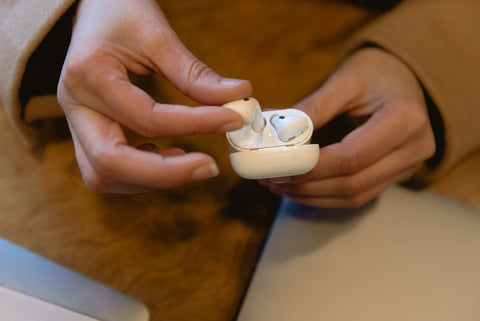
Solution: Remove the AirPods in the Bluetooth settings (Settings > Bluetooth > AirPods > "Forget This Device") and then reconnect them.
3. Restart the AirPods
Cause: General glitches can often be fixed with a restart.
Solution: Put the AirPods in the charging case for at least 10 seconds to trigger a restart. If that's not enough, reset your AirPods. Here you'll find a guide.
4. Software updates
Cause: Outdated software on your smartphone can lead to connectivity problems.
Solution: Make sure both your smartphone and your AirPods are running the latest software update.
5. Problems with third-party apps
Cause: Third-party apps with a poor Bluetooth implementation can cause problems.
Solution: First use pre-installed apps such as the Apple Music player to check whether the problem persists.
If the problem persists despite these measures, there may be a defect.
6. Both AirPods or a single AirPod is defective
Cause: It's possible that one or both AirPods are defective themselves.
Solution: If the problem persists after checking all the other possible causes mentioned above, one or both AirPods may be defective. In this case, it's advisable to contact Apple Support or visit an Apple Store to consider a possible repair or replacement.
In some cases, however, a repair could be more expensive than ordering a replacement part.
Especially if only a single AirPod no longer plays sound and your AirPods are no longer under warranty, buying a single AirPod is the recommended option.
Unfortunately, the manufacturer only sells complete AirPod sets. But in our online shop you'll also find single AirPods. Of course, these are originals that also come with a warranty. That's because we buy original AirPod bundles from the manufacturer and split them into their individual parts.
This way we allow our customers to save money, since a single AirPod is naturally cheaper. We also want to make a contribution to the environment.
How can I tell if my AirPod is broken?
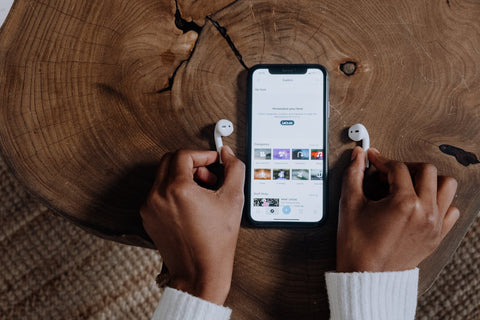 1. No sound or distorted sound: If you can't hear any music or the sound is distorted, this could point to a problem with the speakers or the connection. If the solutions in this post haven't helped so far, your AirPod may be broken.
2. Connection problems: Difficulty pairing the AirPods with your device or frequent connection drops could indicate a fault in the Bluetooth connection.
3. Poor battery performance: If battery life suddenly drops sharply, this could indicate a fault in the battery or the charging electronics.
4. Problems with the charging case: Difficulty charging the AirPods or a poor connection with the charging case could point to a problem with the charging case itself.
5. Physical damage: Visually inspect the AirPods for external damage. Cracks, breaks or other visible damage could indicate a defect.
Frequently asked questions
Why is sound only coming from one AirPod?
There are several reasons why sound only comes from one AirPod. Here are some possible causes and solutions:
- Battery empty: Check whether the battery of the AirPod with no sound is sufficiently charged. Charge both AirPods in the charging case and test again
- Bluetooth connection: Make sure both AirPods are correctly connected to the playback device. Reset the AirPods by taking them out of the case, pressing the setup button and pairing them again.
- Check the settings: Check the balance settings on your device. Sometimes an uneven balance setting can cause sound to come from only one AirPod.
- Dirt or blockage: Check the speaker openings and connectors for possible dirt. Clean the AirPods carefully to make sure no blockages are affecting the sound.
- Software update: Make sure the AirPods and your playback device have the latest software installed. Update to the latest version if necessary.
- Defective speaker: If sound still comes from only one AirPod after all the steps above, the speaker may be defective.
Why can't I listen to music with my AirPods?
If you can't listen to music with your AirPods, there are various possible causes. Here are some steps you can go through to identify and solve the problem:
- Check the connection: Make sure the AirPods are successfully connected to your device. Go to the Bluetooth settings and check whether the AirPods are shown and listed as connected.
- Charge the battery: Make sure the AirPods are sufficiently charged. A low battery level can cause audio dropouts.
- Restart the AirPods: Try briefly taking the AirPods out of the charging case and putting them back in. This performs a quick restart that can fix minor problems.
- Check the audio source: Check whether the music source (e.g. smartphone, tablet) is working properly. Try playing music with other headphones or speakers to make sure the problem isn't with the device itself.
- Check the audio settings: Check the audio settings on your device. Make sure the volume is set appropriately and that the AirPods are selected as the preferred audio device.
- Software update: Check whether software updates are available for your AirPods or the connected device, and install them if necessary. Resetting the AirPods: If all else fails, try resetting the AirPods. This removes all custom settings but can solve deeper problems.
What to do if only one AirPod connects?
There are several things you can do if only one AirPod connects:
- Check the battery level: Charge both AirPods in the charging case.
- Reset the Bluetooth connection: Take both AirPods out of the case, press and hold the setup button and pair them with your device again.
- Test both AirPods: Make sure both AirPods work by playing music.
- Still no improvement? If these steps don't help, there may be a hardware problem and your AirPod may be defective. In this case, at OneEarPod you can order suitable replacement parts.
How can I restart my AirPods?
Here's how to reset your AirPods:
- Charging: Make sure your AirPods are sufficiently charged to avoid problems during the reset.
- Charging case: Put the AirPods in the charging case, close the lid and wait 30 - 60 seconds.
- Open the lid: Open the lid of the charging case and put the AirPods in your ears.
- Settings: Go to “Settings” > “Bluetooth” or to “Settings” > [Your AirPods]. If connected, select “Forget This Device”.
- Keep the lid open: Leave the lid open. Setup button: Press and hold the setup button on the back of the charging case for about 15 seconds until the status light flashes amber and then white.
- Connection: Reconnect the AirPods by following the instructions on the screen.
If you have problems resetting your AirPods or are looking for detailed instructions, click on this post: Reset AirPods.
How long do AirPods last before they break?
The lifespan of AirPods can be affected by various factors, including how intensively they're used, how they're cared for and how they're handled in general. Here are some factors that affect the lifespan of AirPods:
- Battery life: The batteries in AirPods have a limited number of charge cycles before they lose performance. Regular charging and discharging can reduce battery life over time.
-
Wear of components: Mechanical parts such as hinges, buttons and connection points can wear out over time, especially with frequent use.
- Care and cleaning: Improper care, lack of cleaning or exposure to moisture and extreme temperatures can shorten their lifespan.
- Software and firmware updates: In some cases, software or firmware updates can lead to incompatibilities or performance issues, especially when older AirPods are used with new devices or operating system versions.
- Accidents and physical damage: If the AirPods are dropped or otherwise damaged, this can lead to premature wear.
Conclusion: It's hard to give an exact lifespan for AirPods, as it depends heavily on individual circumstances.
Some users report that their AirPods still work well after several years, while others may notice problems after a shorter time.