
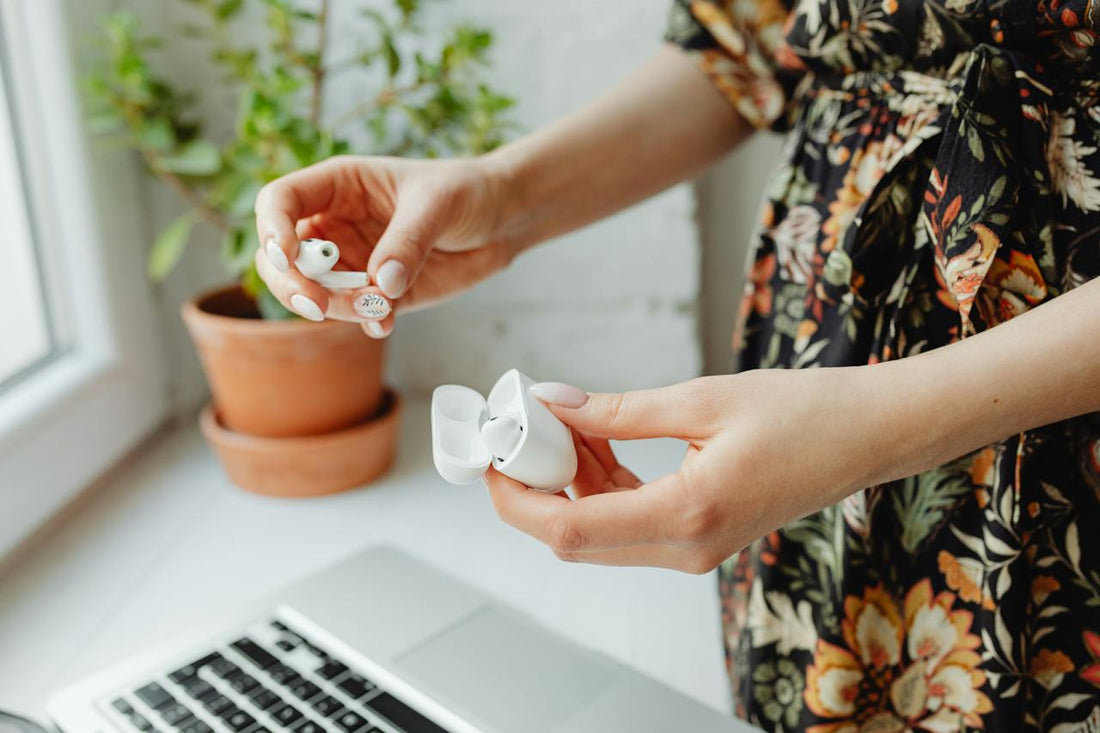
Your AirPods microphone has stopped working and you're annoyed? Understandable. It happens more often than you'd think, and many other users experience it too. But don't worry. In this post you'll learn the most common causes and quick solutions, so your microphone is fully working again in just a few minutes.
Why isn't the AirPods microphone working? 6 causes with solutions
Cause 1: The AirPods are clogged
Dirt may have built up in the microphone holes. This happens especially if you've been using your AirPods for several months without cleaning them in between.
Be gentle when cleaning. If necessary, spray a little alcohol onto a cotton swab (don't make it too wet) and then dab the microphone holes of the AirPods. Apple even recommends using only a completely dry cotton swab.
Now you may be wondering where the AirPods microphones are located? On AirPods or AirPods Pro, the microphone is at the end of the AirPods stems. Note that the position of the microphones can vary depending on the model version. If in doubt, you'll find the information you need in your AirPods manual.
By the way: if you're cleaning your microphones anyway, we recommend taking the opportunity to also clean your entire AirPods.
Cause 2: Active microphone settings
To rule out the AirPods settings as a possible cause, follow these steps.
Go to Settings, tap “Bluetooth” and then the “info icon” next to your AirPods. Now tap Microphone and enable the option “Automatically Switch AirPods”. This ensures that your AirPods always use exactly the microphone that is best suited for the current use.
This solution can work because the microphone problem sometimes only affects one AirPod. If, for example, the problem lies with the left AirPod and the left AirPod is set as the main microphone in the settings, it's no wonder the microphone doesn't work.
Cause 3: Not enough battery
If your AirPods aren't fully charged, that could be why your AirPods microphone isn't working. Recharge your AirPods to at least 80% and then check whether the microphone works again.
Cause 4: Pairing problem

Sometimes pairing the AirPods doesn't work flawlessly. Users report that disconnecting and reconnecting the AirPods can solve microphone problems. Here's how to reset the AirPods:
- Place the AirPods in the charging case and close the lid
- Wait 30 seconds
- Open the lid of the charging case and put the AirPods in your ears
- Go to “Settings” > “Bluetooth” or choose “Settings” > [your AirPods].
- If the AirPods are connected, tap the “i” button (more information). Then tap “Forget This Device” and confirm.
- If your AirPods aren't shown as connected in step 5, do this: place the AirPods in the charging case and leave the lid open. Press and hold the setup button on the back of the charging case for about 15 seconds until the LED on the front of the charging case flashes amber and then white.
- Now reconnect the AirPods. To do this, place the AirPods in the case, leave the lid open, place it near the iPhone and follow the instructions on your iPhone's screen.
- If for some reason only one AirPod connects, take a look at this article for the solution
By the way: Sometimes restarting your iPhone also helps fix the microphone problem. So give that a try too.
Cause 5: Outdated AirPods firmware
Outdated AirPods firmware can be a reason why the microphone isn't working properly. As a rule, AirPods firmware updates are installed automatically via your paired iOS device when they're connected to the internet and near the paired device.
But to be on the safe side, you can check your AirPods' firmware version by connecting them to your iOS device and going to the Bluetooth settings. There you'll find the information about the current firmware version.
Installing firmware updates for AirPods usually works in a similar or identical way, regardless of the specific AirPods generation.
Cause 6: Damage (mechanical problem)
If none of the solutions has helped so far, the AirPod is very likely damaged or broken. In this case, you can check whether your AirPods are still under warranty. If so, in the best case you could get a free repair or receive replacement AirPods. However, this depends on the exact terms of the warranty.
If your warranty has already expired, it may be more worthwhile to buy new AirPods or individual replacement parts. That's because repairs are often so expensive that it's more economical to buy new devices.
If you find that only the microphone of a single AirPod isn't working properly, we also offer individual AirPods in our online shop. The manufacturer and most online shops don't offer these, only complete sets. The advantage with us: an AirPod replacement part is cheaper than buying a new AirPods set.
By the way, we buy original complete packages and split them into their individual parts. This ensures that you get an original product and also keep the full manufacturer's warranty, even if you only buy one replacement part.
Frequently asked questions
Testing the AirPods microphone: how do I do it?
There are several ways you can test your AirPods microphone:
- During a phone call
- Test with voice memos
- Test with Siri
- Test the dictation function
- Test with apps and video recordings
How can I tell that my AirPods microphone is broken?
If you suspect that your AirPods microphone could be faulty, you should first try the following fixes to rule out a defect:
- Clean the AirPods microphones
- Check the AirPods settings
- Charge the AirPods sufficiently
- Rule out pairing problems
- Update the firmware
- Restart the iPhone
You can find out exactly how to do this in this post. If the following signs still occur despite these measures, your AirPods or the microphone may be faulty:
- No response from Siri
- Problems with voice memos
- The other person can't hear any sound during calls
- Constant background noise or hissing
Can you use AirPods as a microphone?
Yes, all AirPods models can be used as a microphone. In this post we show you exactly how it works.