
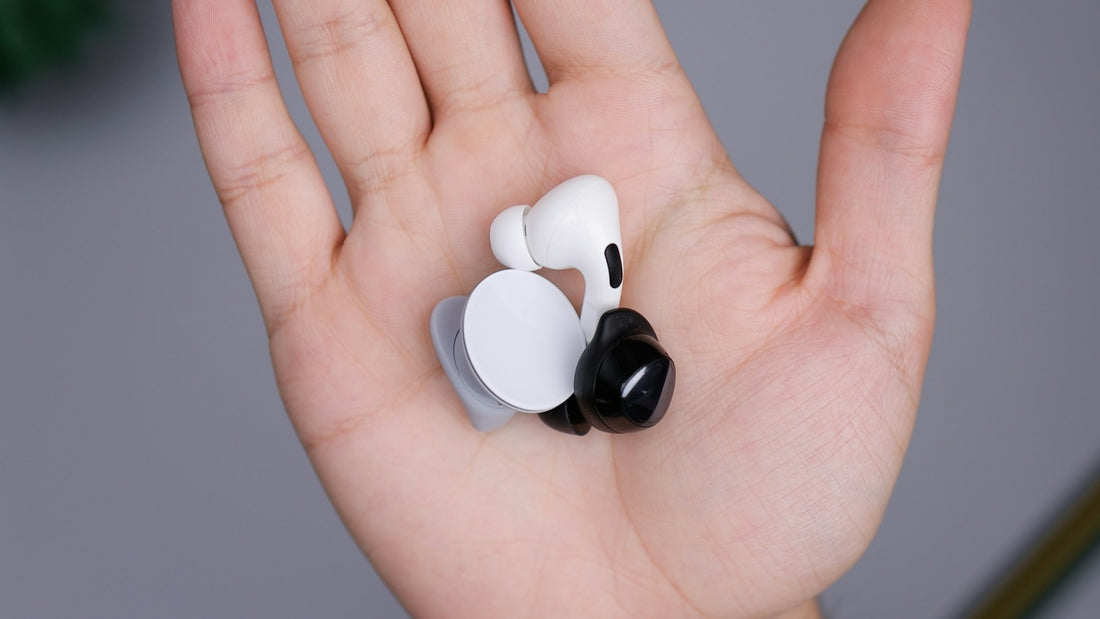
Do your AirPods or AirPods Pro keep disconnecting? That's annoying. But don't worry: in this post we'll tell you the possible causes and how you can quickly solve the problem.
We've also thought of all Windows and Android users in this post. You'll find solutions for them further down as well. But let's start with the solution for Apple users:

Why do my AirPods or AirPods Pro keep cutting out?
Here are the possible causes of AirPods connection problems, sorted by frequency, with the most common causes listed first:
Cause 1: Bluetooth interference:
Bluetooth interference is the most common cause of AirPods connection problems. In environments with many electronic devices or heavily used Wi-Fi bands, signal disruptions can occur.
Solution: Avoid overly crowded environments, reduce the number of active Bluetooth devices and try using the AirPods in an area with less interference.
Cause 2: battery level:
Connection problems due to a low battery level are also quite common. If the AirPods or the charging case are low on power, interruptions can occur.
Solution: Fully charge the AirPods and the charging case to make sure there's enough power, and check the battery status regularly.
Cause 3: update needed:
Outdated software can lead to compatibility problems, especially when new features are available for the AirPods.
Solution: Regularly check and update the software on your iPhone, iPad or Mac. Also update the AirPods firmware via Settings.
4. Faulty Bluetooth settings:
Faulty Bluetooth settings are an occasional cause of dropped connections. Incorrect configurations can impair communication.
Solution: Check your device's Bluetooth settings and make sure the AirPods are connected correctly. If necessary, disconnect and reconnect the Bluetooth connection. This step often helps.
5. Location Services:
Turning on Location Services can occasionally contribute to a more stable connection, especially when location information is relevant for the AirPods.
Solution: Turn on Location Services on your device to ensure a more stable connection with the AirPods, especially when using features like "Find My".
6. Faulty AirPods or charging case:
Although rare, faulty AirPods or a defective charging case can cause connection problems.
Solution: Check the AirPods and the charging case for visible damage. If problems persist, contact Apple Support for an accurate diagnosis and possible replacement. If your AirPods are no longer under warranty, or if the repair would be too expensive even with warranty: consider getting new AirPods.
What should you do if only one AirPod keeps disconnecting?

If, after trying the solutions above, only one AirPod keeps disconnecting, it's faulty.
In that case, you can get a replacement. Unfortunately, the manufacturer doesn't offer separate spare parts, such as just the right or left AirPod. In our online shop however, you have the option to buy single original AirPods.
This is far more cost-effective than buying a complete AirPods set when only one AirPod keeps disconnecting.
To make sure you can keep enjoying music or joining video conferences in the quality you're used to, we advise against choosing inferior replacements.
We buy complete original sets from Apple and split them into their individual components. This of course also allows us to guarantee the full manufacturer's warranty.
Buying individual spare parts isn't just cost-efficient, it's also sustainable. Replacing only the part that keeps disconnecting saves resources and avoids waste.
AirPods keep disconnecting from Android?
If AirPods keep disconnecting from an Android device, the basic solution remains largely the same as the one described for Apple devices.
The steps aimed at minimizing Bluetooth interference, checking the battery level, installing firmware updates if necessary and checking the Bluetooth settings also apply to Android users.
The approach to solving connection problems with AirPods therefore remains similar regardless of the operating system, although the specific settings and menu items may vary depending on the platform.
AirPods keep disconnecting from Windows 10?
If AirPods keep disconnecting from a Windows 10 device, various reasons may be responsible. Here are some possible causes and solutions:
1. Check the Bluetooth connection:
Make sure the AirPods are correctly connected to the Windows 10 device. Go to the Bluetooth settings and disconnect them, then reconnect.
2. Update the Bluetooth drivers:
Check whether your Bluetooth drivers are up to date. To do this, go to Device Manager, find the Bluetooth adapter and update the drivers if necessary.
3. Adjust power management for Bluetooth:
Disable automatic power management for the Bluetooth adapter. Go to Device Manager, right-click the Bluetooth adapter, select "Properties" and disable the option "Allow the computer to turn off this device to save power".
4. Install Windows 10 updates:
Check whether your Windows 10 operating system is up to date. Install all available updates, as this may fix problems.
5. Forget the AirPods in the Bluetooth setup and add them again:
Remove the AirPods from the list of paired devices in the Windows 10 Bluetooth settings and then add them again.
6. Faulty third-party Bluetooth software:
If you've installed third-party software for Bluetooth connections, this could lead to conflicts. Uninstall such software and try connecting the AirPods again.
7. Check the firewall and security software:
Check whether the firewall or security software on your Windows 10 device is blocking the Bluetooth connection. Adjust the settings if necessary.
Frequently asked questions
Why does the Bluetooth connection stutter?
The Bluetooth connection can stutter for the following reasons:
- Bluetooth interference
- Low AirPods battery level
- Outdated software or firmware
- Faulty Bluetooth settings on the iPhone
- Interference from other wireless devices
- Location Services turned off
- Faulty AirPods or charging case
How can you reset your AirPods?
For AirPods 1st and 2nd generation:
Put your AirPods in the charging case and close the lid. Wait about 30 seconds and then open the lid. Press the small round button on the back of the charging case until the status light on the front flashes white. This signals that the AirPods have been reset.
For AirPods Pro or AirPods 3rd generation:
Put your AirPods in the charging case and close the lid. Press and hold the round button on the back of the charging case until the status light on the front flashes amber and then white. Open the lid of the AirPods near your paired device and follow the on-screen instructions.
After resetting, you can pair the AirPods with your device again. Note that resetting also removes saved customizations such as the AirPods' names and touch settings.
For more information on resetting, feel free to read this article too: Resetting AirPods: step-by-step guide.
Can you have AirPods repaired?
Yes, AirPods can be repaired. If your AirPods are within the warranty period or you've purchased AppleCare+ for them, Apple usually offers repair or replacement services. This can include repairing or replacing faulty parts.